Posts & AI edits
Approve, skip, or save a post
Understand what each decision does and how it affects publishing.4 min read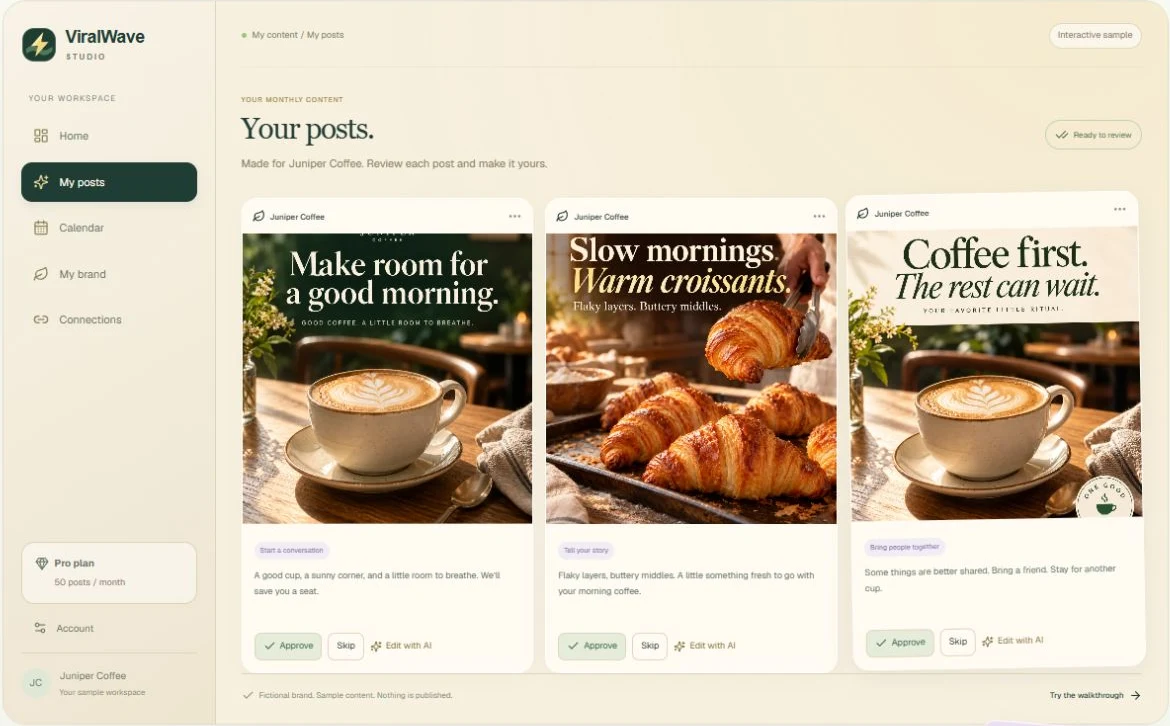
- 01
Open My posts
Review the next post in your collection. Read the caption, check its image and hashtags, and confirm the business information is accurate.
- 02
Approve a post you want to use
Choose Approve or swipe right in the review flow. Approval saves your decision. If publishing is enabled to a connected account, the post can enter the publishing queue.
- 03
Skip an unsuitable idea
Choose Skip or swipe left. Skipped posts stay out of publishing. You can edit a skipped post or request a replacement when your allowance permits.
- 04
Save an idea for later
Saving keeps the idea without approving it for publishing. Return to your collection when you are ready to decide.
- 05
Revisit a decision
Use the visible Undo control or open the post again from your collection or calendar. Confirm its updated status afterward. Changes to already published posts do not undo the original social publication.
Helpful tips
- Approval is permission to use a post; connecting an account and enabling publishing are separate requirements.
- Do not approve a factual claim you have not checked.
- After finishing the review, open Calendar to see planned dates and current publishing states.
If something doesn’t look right
I approved everything but nothing is publishing.
Check Connections and enable publishing. An approved post without a connected publishing destination remains waiting for setup.
Where are the posts I skipped?
Reopen your collection in My posts and use the review-decision filter. Skipped ideas can still be edited; they are not scheduled for publication.